

Getting Started
Welcome to Staff Compliance Manager. This guide walks you through signing in for the first time, setting up extra security for your account, and resetting your password if you ever forget it.
Signing In
Section titled “Signing In”- Open your web browser (Chrome, Edge, Firefox, or Safari all work well).
- Go to the Staff Compliance Manager address (URL) your organization gave you.
- You will see a sign-in page with the heading Sign in to your Policy Tracker account.
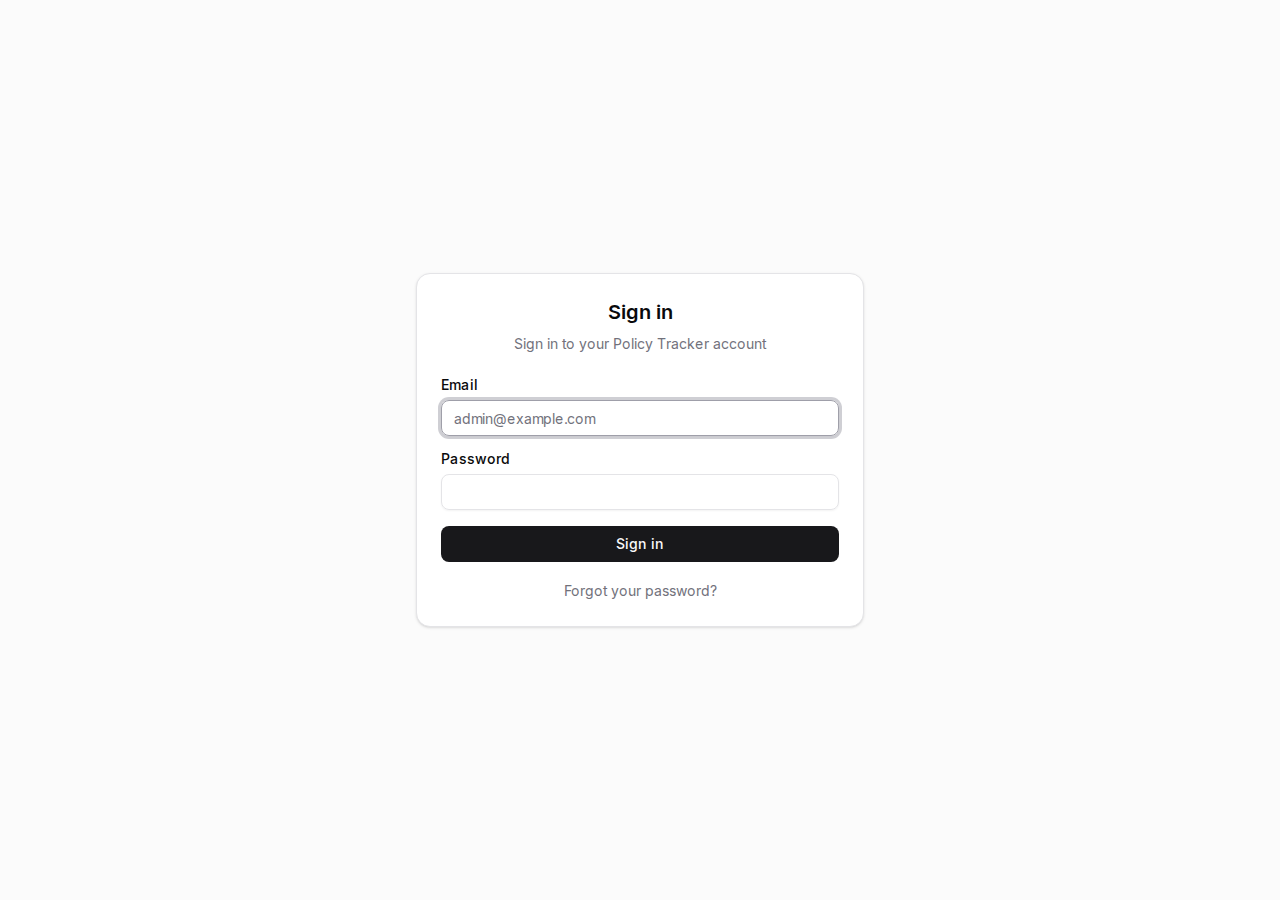
- Type your email address in the Email field.
- Type your password in the Password field.
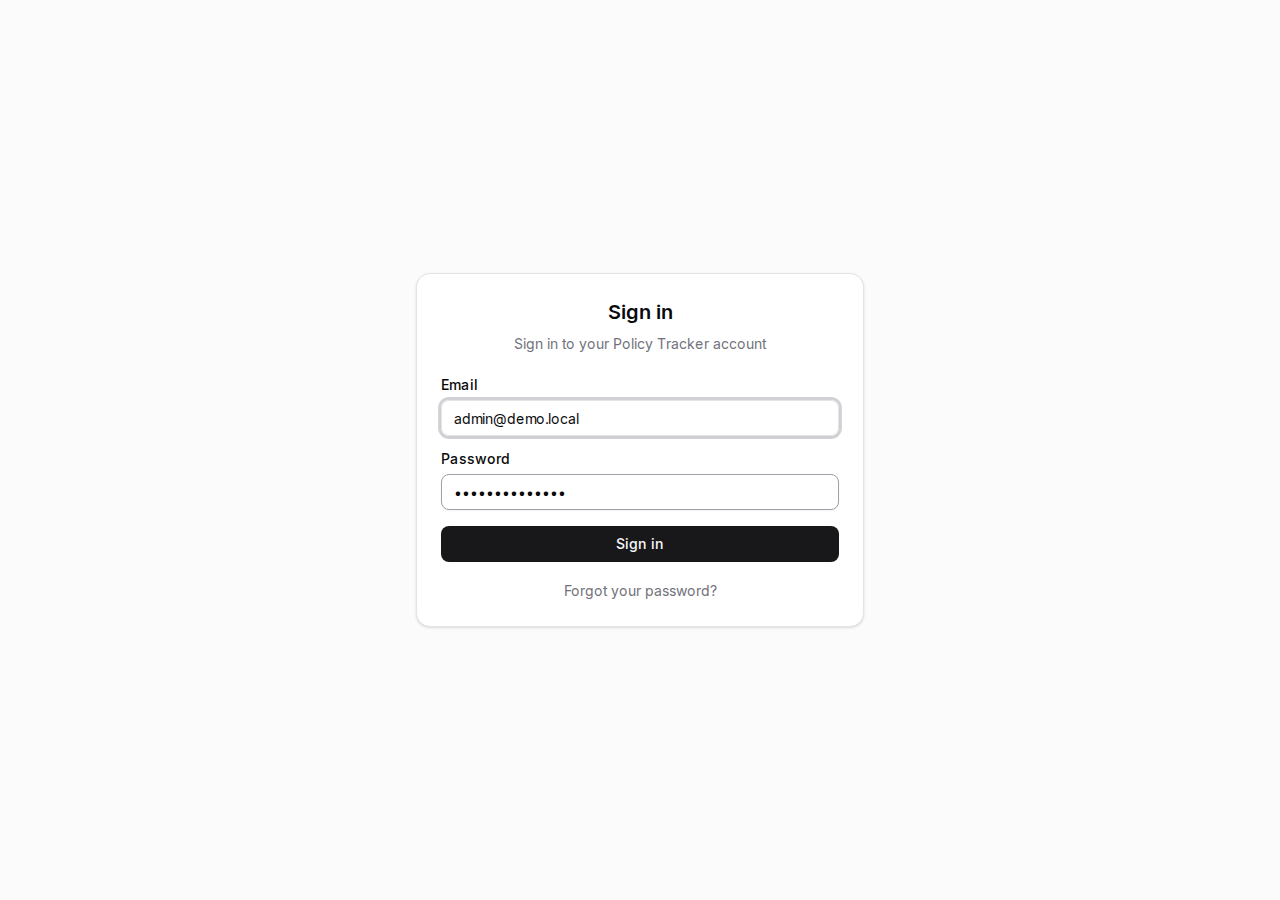
- Click the Sign in button.
If your email and password are correct, you will be taken into the application.
Setting Up Multi-Factor Authentication (MFA)
Section titled “Setting Up Multi-Factor Authentication (MFA)”The first time you sign in, Staff Compliance Manager will ask you to set up multi-factor authentication. This is an extra layer of security that makes sure only you can access your account, even if someone else learns your password.
Here is what to expect:
- After entering your email and password for the first time, a screen will appear with a QR code (a square pattern of black and white dots).
- On your phone, open an authenticator app. Two popular free options are:
- Google Authenticator (available on iPhone and Android)
- Microsoft Authenticator (available on iPhone and Android)
- In the authenticator app, choose the option to add an account or scan a QR code.
- Point your phone’s camera at the QR code on your computer screen. The app will recognize it automatically.
- The authenticator app will start showing a 6-digit code that changes every 30 seconds.
- Type the current 6-digit code into the field on screen and submit it.
That’s it. MFA setup is a one-time step. You will not need to scan the QR code again.
Signing In After MFA Setup
Section titled “Signing In After MFA Setup”Once MFA is set up, every future sign-in will have one extra step:
- Go to your organization’s Staff Compliance Manager address.
- Enter your email and password, then click Sign in.
- Open the authenticator app on your phone.
- Type the current 6-digit code from the app into the field on screen.
- Click Verify (or press Enter).
You will then be taken to the Dashboard.
Resetting Your Password
Section titled “Resetting Your Password”If you forget your password, you can reset it yourself from the sign-in page.
- On the sign-in page, click the Forgot your password? link below the password field.
- Type your email address in the field provided.
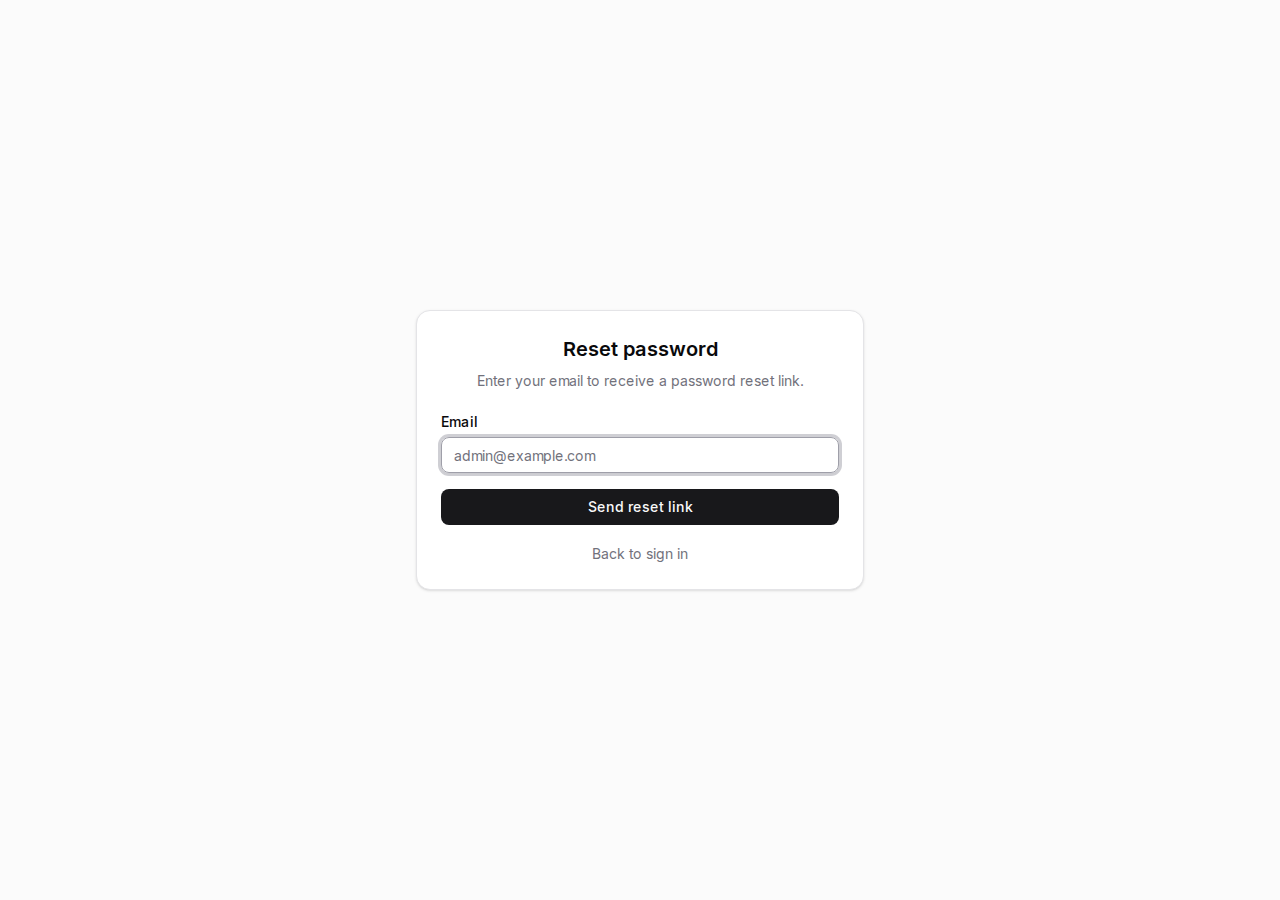
- Click Send reset link (or the equivalent button).
- Check your email inbox. You will receive a message with a link to reset your password. If you do not see it within a few minutes, check your spam or junk folder.
- Click the link in the email. A new page will open in your browser.
- Enter a new password. It must be at least 12 characters long.
- Enter the same new password again in the Confirm password field.
- Click Reset password.
You can now return to the sign-in page and sign in with your new password.
- Keep your authenticator app accessible. You will need it every time you sign in. If you get a new phone, set up the authenticator app on the new device before wiping the old one.
- Passwords must be at least 12 characters. A good password is long and easy for you to remember but hard for others to guess. A short sentence works well, for example:
MargaretLovesGardening2025. - Locked out? If you cannot sign in and cannot reset your password on your own, contact your organization’s administrator for help.