

Compliance Dashboard
The Dashboard is the first thing you see after signing in. It gives you a quick picture of where your organization stands on compliance — no digging required.
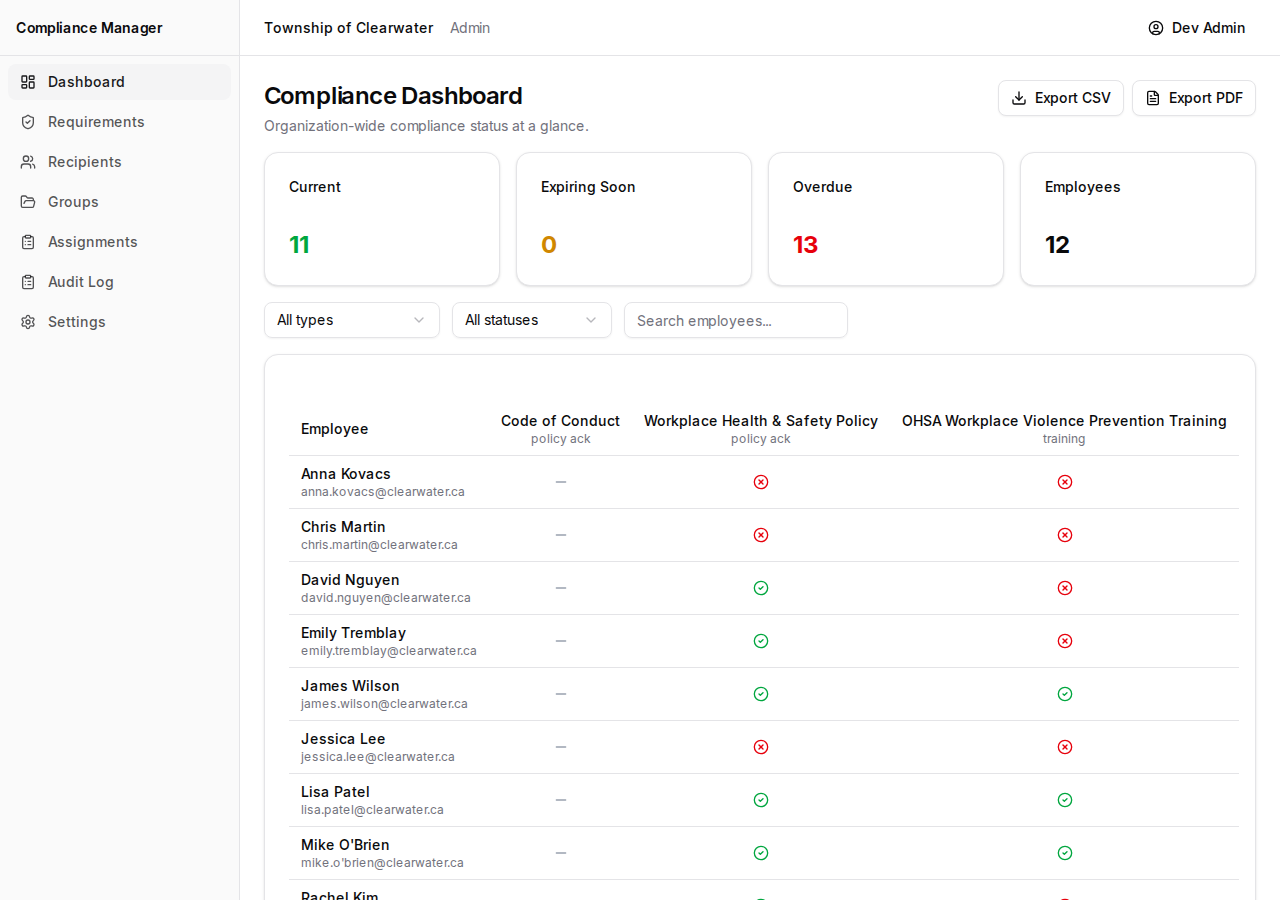
Stat Cards
Section titled “Stat Cards”At the top of the page, you will find four summary cards:
- Current — The number of assignments that are up to date.
- Expiring Soon — Assignments that will need renewal shortly.
- Overdue — Assignments that have passed their due date without completion.
- Employees — The total number of recipients in your organization.
These numbers update automatically as employees complete requirements and as due dates approach.
Compliance Matrix
Section titled “Compliance Matrix”Below the stat cards is the compliance matrix. This is a table where:
- Each row is an employee.
- Each column is a requirement.
- Each cell shows a status badge for that employee and requirement combination.
Status badges tell you at a glance whether someone is current, pending, overdue, or has another status for a given requirement.
Filtering the View
Section titled “Filtering the View”The Dashboard can hold a lot of information, so there are several ways to narrow down what you see.
Search by Employee Name
Section titled “Search by Employee Name”Use the search bar to type part of an employee’s name. The table will update to show only matching rows.
Filter by Requirement Type
Section titled “Filter by Requirement Type”Use the requirement type filter to show only certain kinds of requirements, such as:
- Policy Acknowledgement
- Training Completion
- Other types your organization has set up
Filter by Status
Section titled “Filter by Status”Use the status filter to show only cells that match a particular status, such as:
- Current
- Pending
- Overdue
- Expired
You can combine filters. For example, you could search for a specific employee and filter by “Overdue” to see only their overdue items.
Exporting Data
Section titled “Exporting Data”You have two ways to download the information shown on the Dashboard:
- Export CSV — Downloads a spreadsheet file that you can open in Excel or Google Sheets. This is useful for sorting, filtering, or sharing the data in other tools.
- Export PDF — Downloads a formatted report that is ready to print or attach to an email.
Both export options respect your current filters, so you can narrow the view first and then export just the data you need.