

Managing Groups
Groups let you organize your recipients (employees) so you can assign requirements to many people at once, instead of selecting them one by one. For example, you might have groups like “Office Staff,” “Field Crew,” or “Management.”
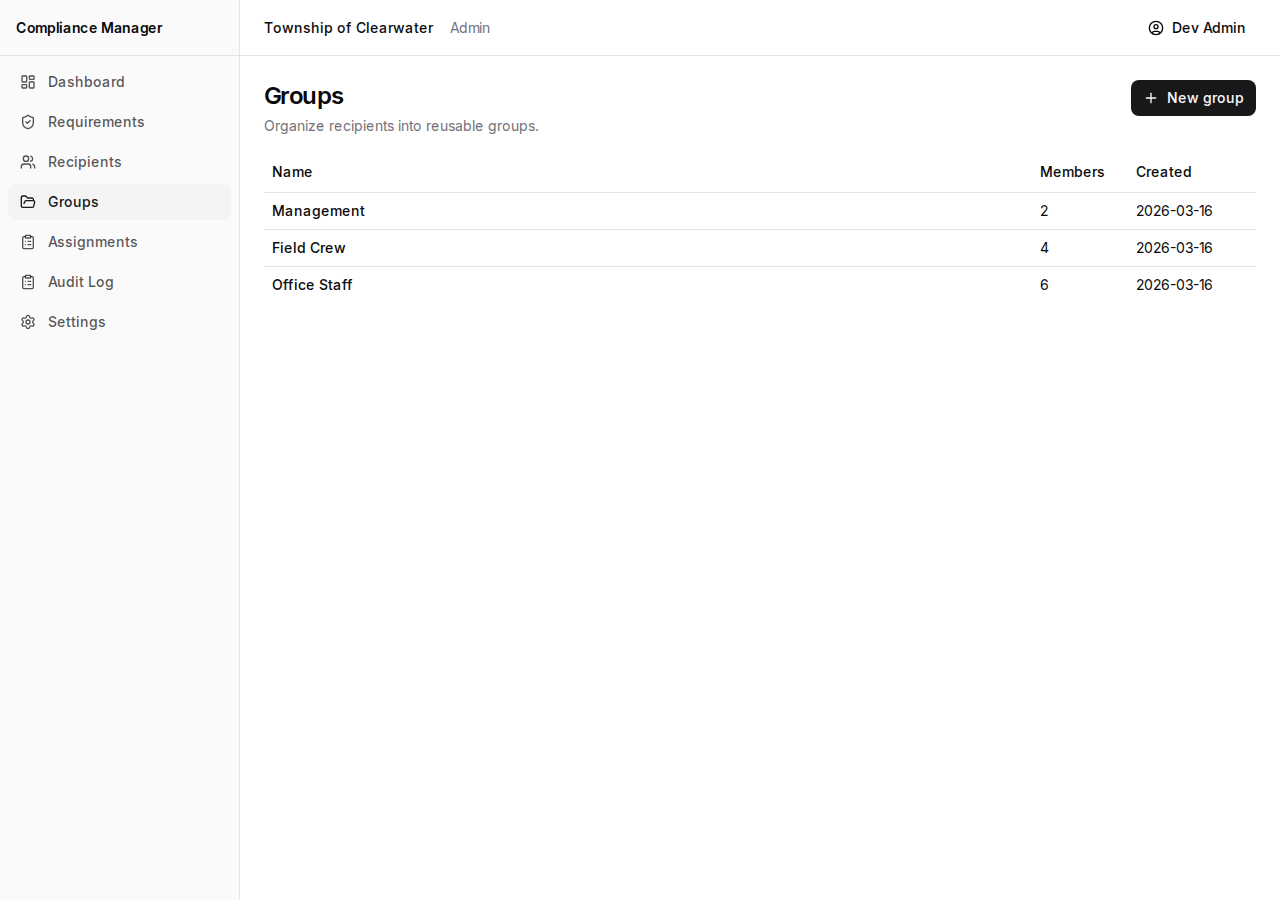
The groups page shows:
| Column | What it means |
|---|---|
| Name | The name of the group. |
| Members | The number of recipients in the group. |
| Created | The date the group was created. |
Creating a Group
Section titled “Creating a Group”- Click the New group button.
- Enter a name for the group (for example, “Office Staff” or “Summer Students”).
- Click Create.
The new group will appear in your list. It starts with zero members — you will add people to it in the next step.
Viewing a Group
Section titled “Viewing a Group”Click on a group’s name to open its detail page.
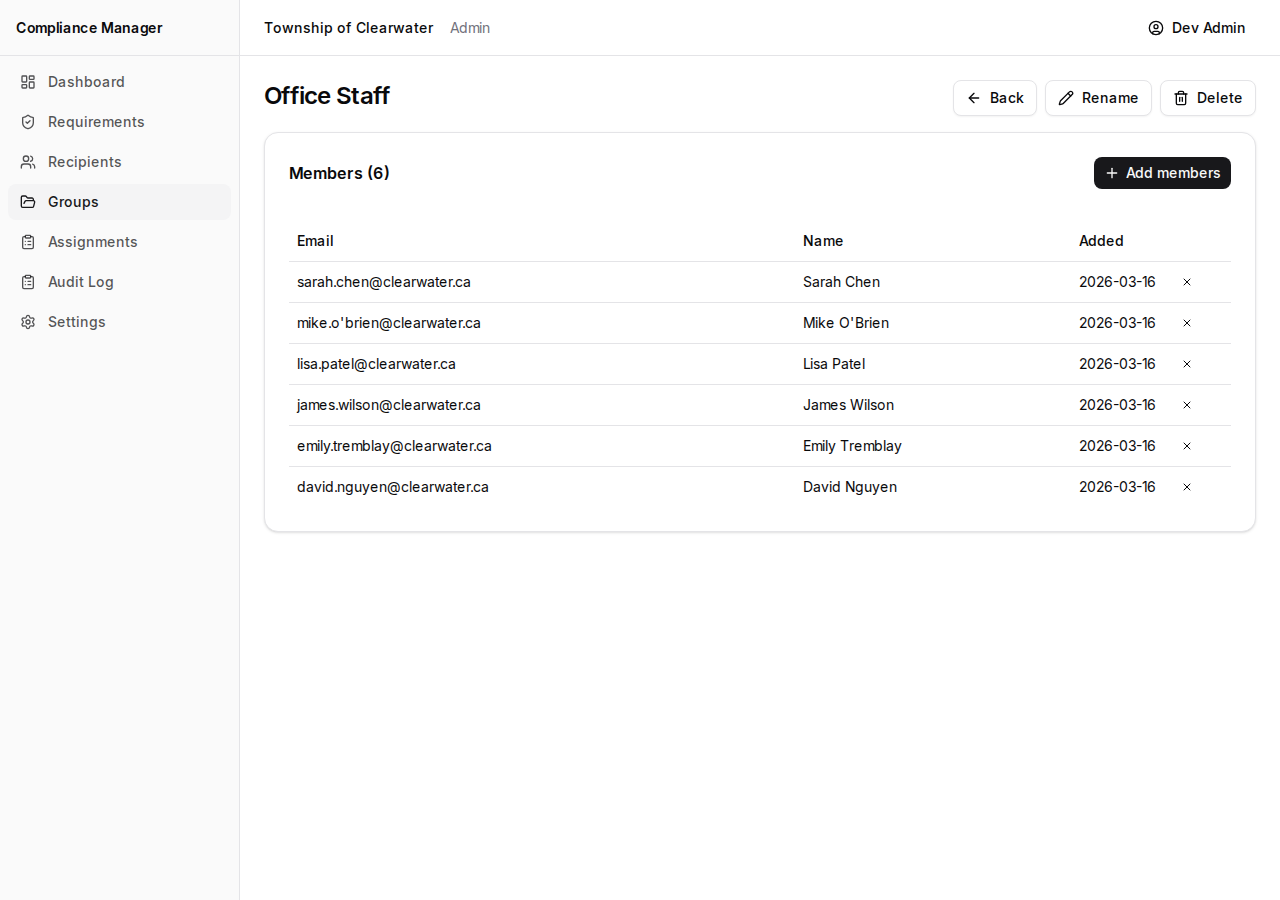
The detail page shows a list of all members in the group, including their names and email addresses.
Adding Members
Section titled “Adding Members”- On the group detail page, click Add members.
- Use the search bar to find recipients by name or email.
- Check the box next to each person you want to add.
- Click Add.
The selected recipients will appear in the group’s member list right away. You can add as many members as you need.
Removing a Member
Section titled “Removing a Member”- On the group detail page, find the member you want to remove.
- Click the X next to their name.
- Confirm that you want to remove them from the group.
Removing someone from a group does not delete them from the system. They will still appear in your Recipients list and in any other groups they belong to.
Renaming a Group
Section titled “Renaming a Group”- On the group detail page, click Rename.
- Enter the new name.
- Save your changes.
The new name will appear everywhere the group is referenced.
Deleting a Group
Section titled “Deleting a Group”- On the group detail page, click Delete.
- Confirm that you want to delete the group.
When you delete a group:
- The group is removed from the system.
- The members of the group are not deleted. They remain in your Recipients list and in any other groups they belong to.
Use this when a group is no longer needed — for example, if a department has been reorganized or a temporary team has been dissolved.