

Settings
The Settings page lets you review your account details and invite another administrator to help manage your organization.
Viewing Your Account Information
Section titled “Viewing Your Account Information”Click Settings in the sidebar.
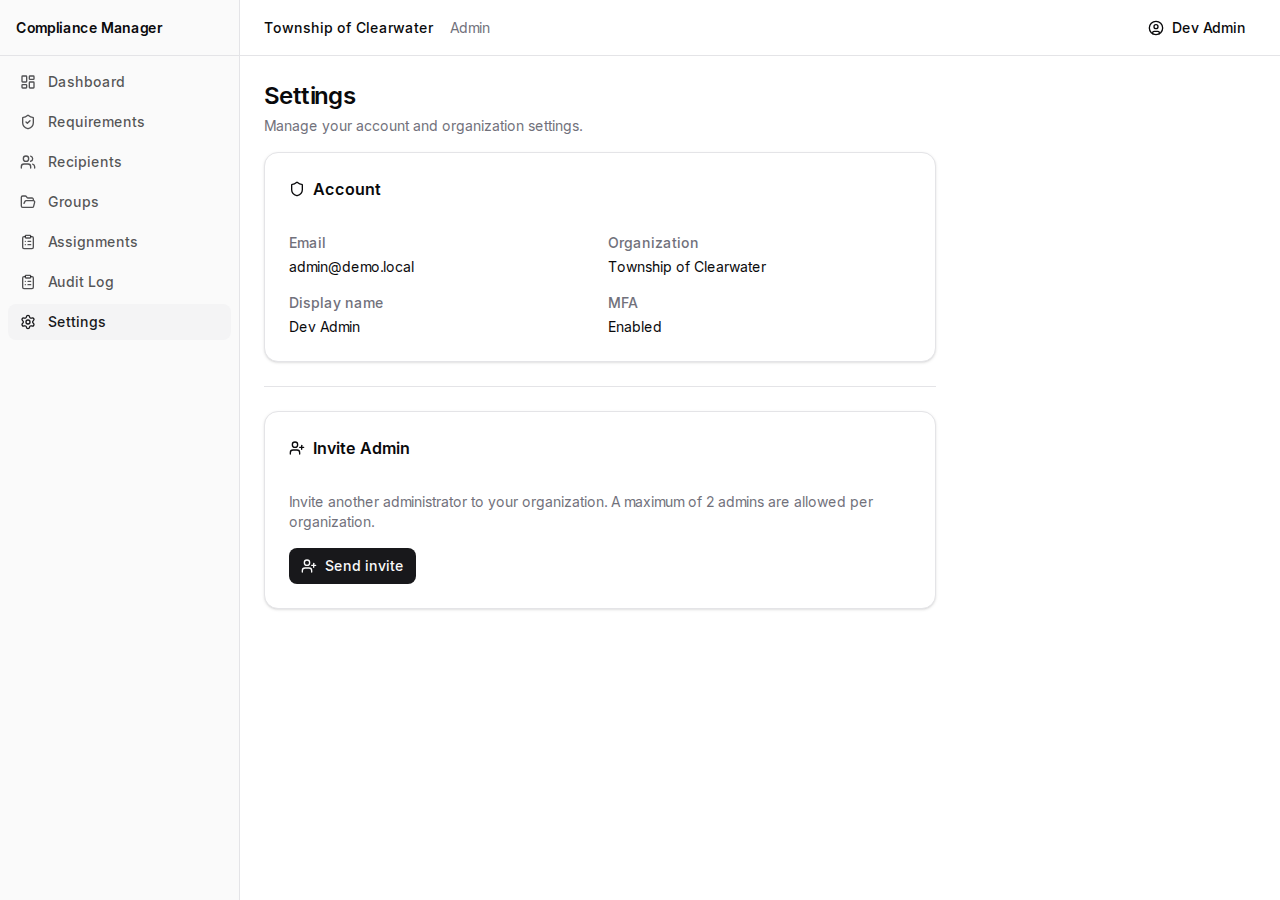
At the top, the Account card shows your current account details. These fields are read-only — they are here for your reference:
- Email — the email address you use to sign in.
- Organization — the name of your organization.
- Display name — the name shown next to your actions in the application.
- MFA — your multi-factor authentication status (Enabled).
If any of this information needs to change, contact your system administrator or Cedar Meridian support.
Inviting an Administrator
Section titled “Inviting an Administrator”Below the account card, you will find the Invite Admin section. This lets you bring on a second administrator who can sign in and manage assignments, requirements, and recipients alongside you.
- Click Send invite.
- Enter the new administrator’s email address.
- Optionally, enter their display name.
- Click Send invite.
They will receive an email with instructions on how to create their account and set up multi-factor authentication.